

Set Up AutoSummary for Agent Workspace for Salesforce Voice
AutoSummary is an AI-powered feature within the SCV Companion App that automatically generates a summary of voice interactions when a call ends. It reduces After Call Work (ACW) time by providing agents with a ready-made summary they can review, edit, and save.
AutoSummary delivers the following capabilities:
-
Generates an automatic call summary powered by Copilot AI when the voice call ends.
-
Allows agents to review and edit the summary before saving.
-
Saves the final summary.
-
Stores both AI-generated and agent-edited versions for audit and compliance.
Prerequisites
Before you enable AutoSummary, verify that the following requirements are met:
-
Product license: Product Catalog enablement with Product ID 177 (isEnabled = true). Without a valid license, AutoSummary is not generated.
-
Transcription profile: An active transcription profile must be configured. Without transcription, no summary can be generated.
-
Copilot setup: The Copilot LWC component must be added to the VoiceCall page layout.
-
Admin access: Access to the Tenant Management (TM) portal in CXone Mpower.
Initial Enablement
Work with your Account Representative to enable AutoSummary and Agent Assist Hub on your tenant.
Post-Enablement Setup Tasks
After your Account Representative enables AutoSummary on your tenant, complete the following tasks:
-
Create at least one AutoSummary profile.
-
Create or modify Studio scripts to connect AutoSummary to interactions.
-
Modify ACD skills with the Disposition option enabled.
-
Set up Transcription profiles for Continuous Stream Transcription.
-
(Optional) Enable the Copilot for Agents license for MAX usage.
Enable the AutoSummary license in Tenant Management
-
Sign in to the Tenant Management Portal (CXone Mpower).
-
Go to TM > Tenants.
-
In the search box, find and open your tenant.
-
Select the Applications & Features tab.
-
Locate ACD (Automatic Call Distribution).
-
Select the Configure icon .
-
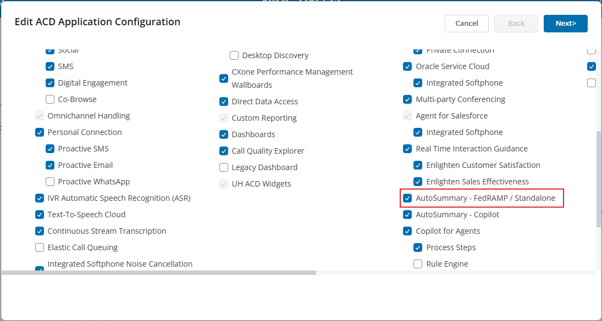
In the ACD Configuration screen, enable the following license:
-
AutoSummary – FedRAMP / Standalone
-
-
Click Next.
-
Select Save.
 View image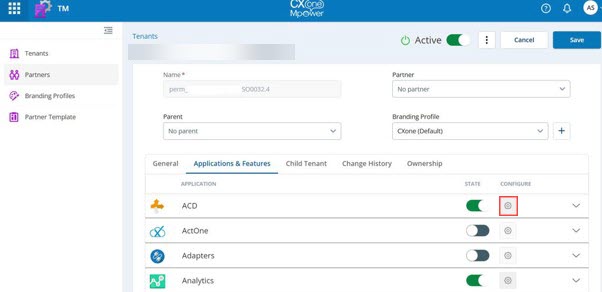
License changes can take a few minutes to propagate across services. If AutoSummary does not appear immediately, wait and retry.
Create AutoSummary profiles
The Wrap-up component follows the same configuration model as Companion Applications (Copilot and Live Transcript). However, the Wrap-up component remains available to users even when Companion Applications are not configured or enabled for the customer. For information about configuring Companion Applications, see Set Up Copilot, Live Transcript, and Contact History in Agent Workspace for Salesforce Voice
After you enable the license, create AutoSummary profiles to define how summaries are generated and applied to your agents.
For detailed instructions, see Create NiCE CXone AutoSummary Profiles on the NiCE CXone Help Center.
AutoSummary Profile Configuration
Administrators can specify the following within each profile:
-
AI Model Type: Select the AI model based on your organizational vertical.
-
Summary Type Options: Choose from three options below
Type Description Structured AI Outputs intent, outcomes, and events as short phrases. Generative AI Outputs full-sentence excerpts drawn from the interaction transcript. Hybrid Structured AI concepts converted to complete sentences by Generative AI.
Modify ACD Skills with the Disposition Option Enabled
Modify your ACD skills with the Disposition option enabled. This ensures that AutoSummary can associate generated summaries with the appropriate disposition data at the end of each interaction.
Ensure the Disposition option is enabled on all ACD skills that will use AutoSummary.
CRM Integration
AutoSummary data can integrate with supported CRM applications. To enable this:
-
Go to the Agent Integrations page.
-
Add data mapping for Disposition Notes fields between NiCE CXone Agent Workspace and the CRM platform.